
Passkeys
Passkeys let you sign in to Versium REACH without a password, using your fingerprint, face, or device PIN. A passkey is stored on your device (or in your password manager) and can't be phished or reused on another site, so it's both faster and more secure than a password.
Passkeys work in current versions of Chrome, Edge, Safari, and Firefox. If your browser doesn't support passkeys, the Passkeys section shows the message Your browser does not support passkeys, and the sign-in button doesn't appear on the login page.
Add a passkey
-
Sign in to Versium REACH.
-
Go to Settings > Security Settings.
-
In the Passkeys section, select Add a Passkey:
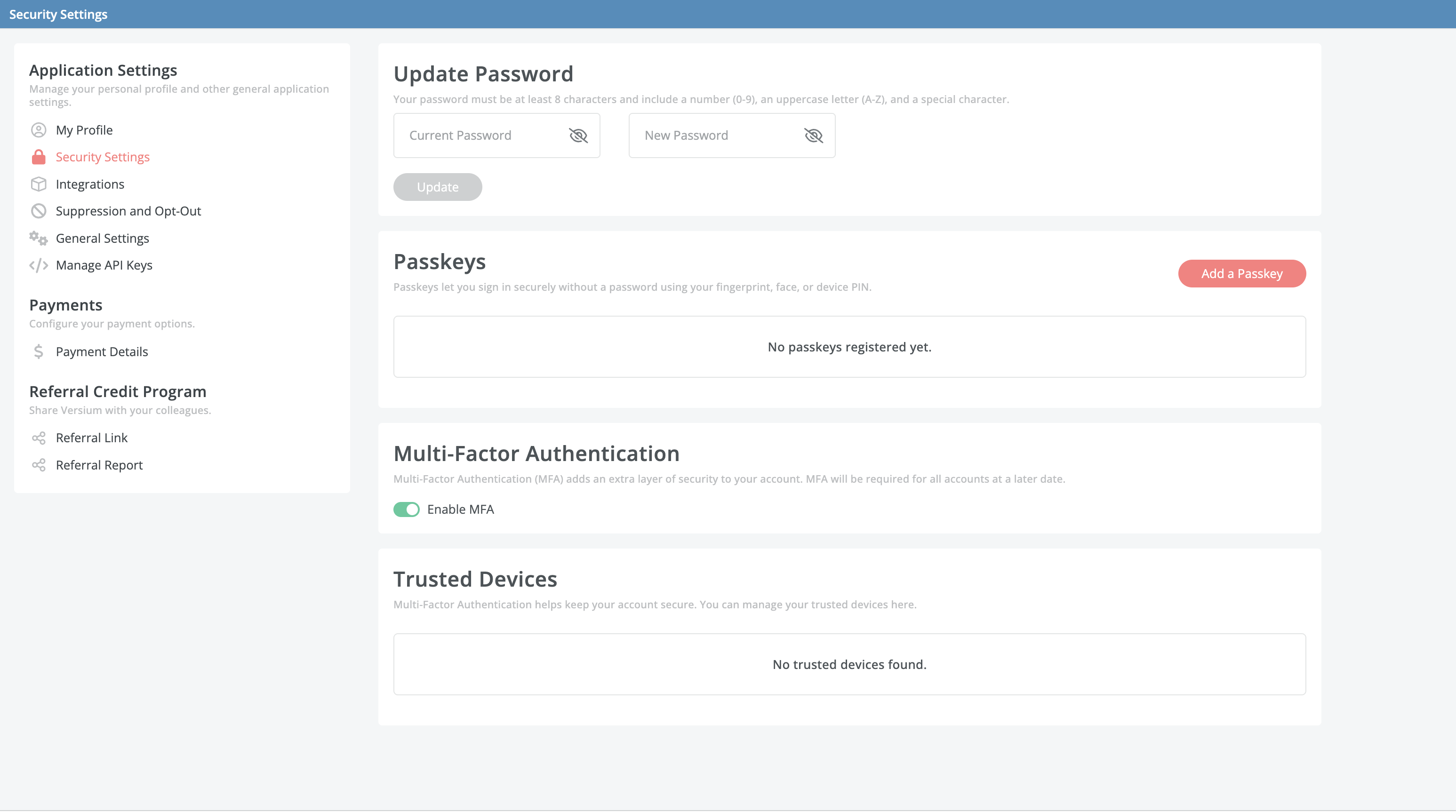
-
Optionally, enter a name for the passkey, such as Work laptop, and select Continue. If you leave the name blank, the passkey is named automatically (Passkey 1, Passkey 2, and so on).
-
Follow your browser's or device's prompt to create the passkey (for example, scan your fingerprint, use Face ID, or enter your device PIN).
-
When you see Passkey registered successfully!, the new passkey appears in the list.
The list shows each passkey's name, when it was created, and when it was last used.
You can add more than one passkeyAdd a passkey on each device you sign in from, such as your work laptop and your phone. Passkeys saved to a password manager or to your Apple or Google account are available on all your devices that use that account.
Sign in with a passkey
-
Go to the Versium REACH sign-in page.
-
Select Sign in with a Passkey:

-
Choose your passkey and confirm with your fingerprint, face, or device PIN.
You're signed in without entering your password or an MFA code. You can still sign in with your email and password at any time.
Rename a passkey
- Go to Settings > Security Settings.
- In the Passkeys section, find the passkey and select the pencil icon.
- Enter a new name and select Rename.
Delete a passkey
- Go to Settings > Security Settings.
- In the Passkeys section, find the passkey and select the trash icon.
- Select Confirm.
Deleting a passkey in Versium REACH stops it from working for sign-in, but doesn't remove it from your device or password manager. You can remove it there separately.
Updated about 2 hours ago