
Export to Google Sheets and OneDrive
Use this workflow when you want to send list data from Reach to a spreadsheet destination instead of downloading a file to your computer first.
Before you start
- Be on the eligible list page you want to export (spreadsheet export isn't available for Online Audience exports).
- Decide whether you want a new Google Sheets spreadsheet or a CSV file uploaded to OneDrive.
- If Reach asks you to connect an account, complete that connection in the popup and return to the Export modal.
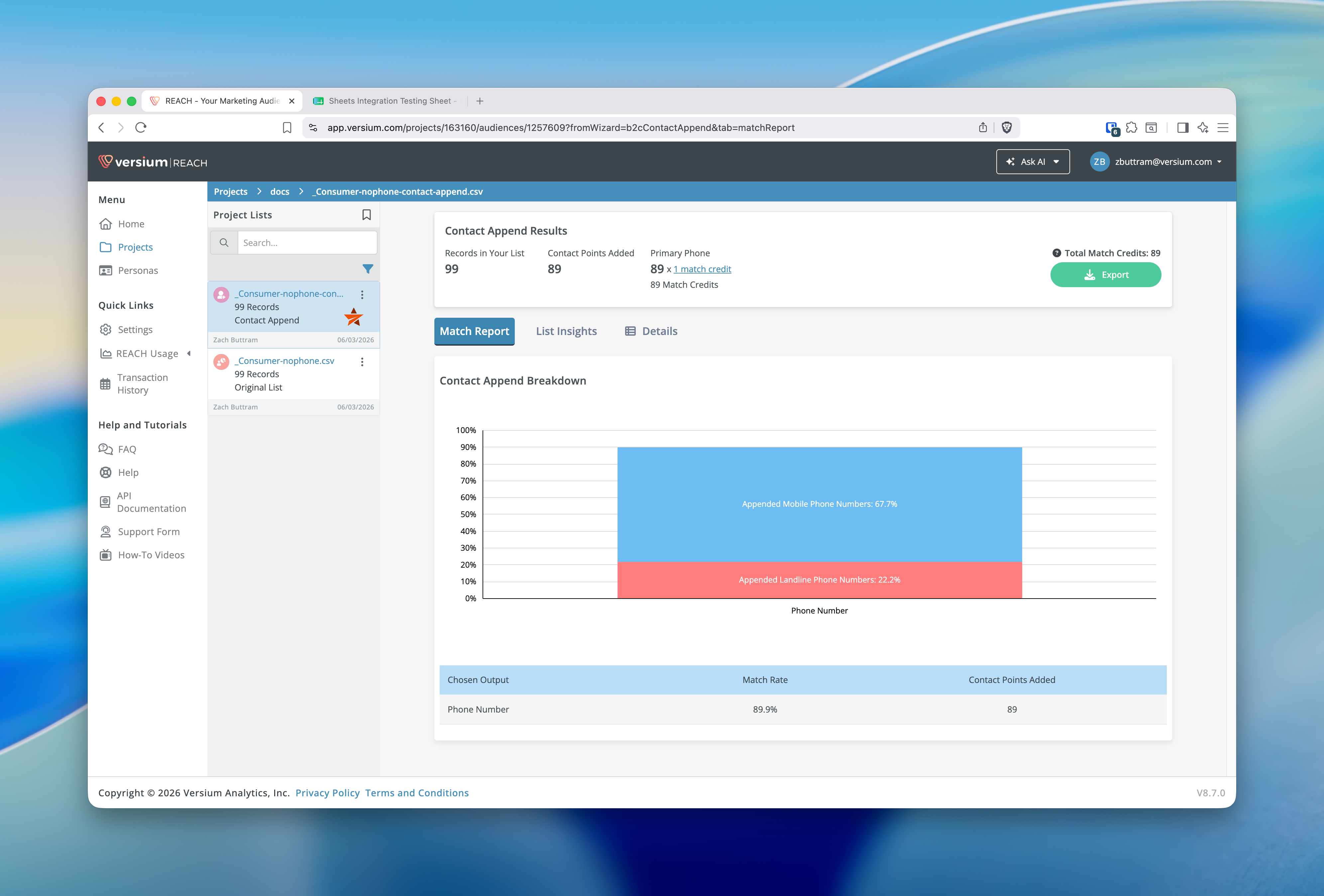
Export your list to Google Sheets or OneDrive
- Open the eligible list you want to export. (Spreadsheet export isn't available for Online Audience exports.)
- Click Export.
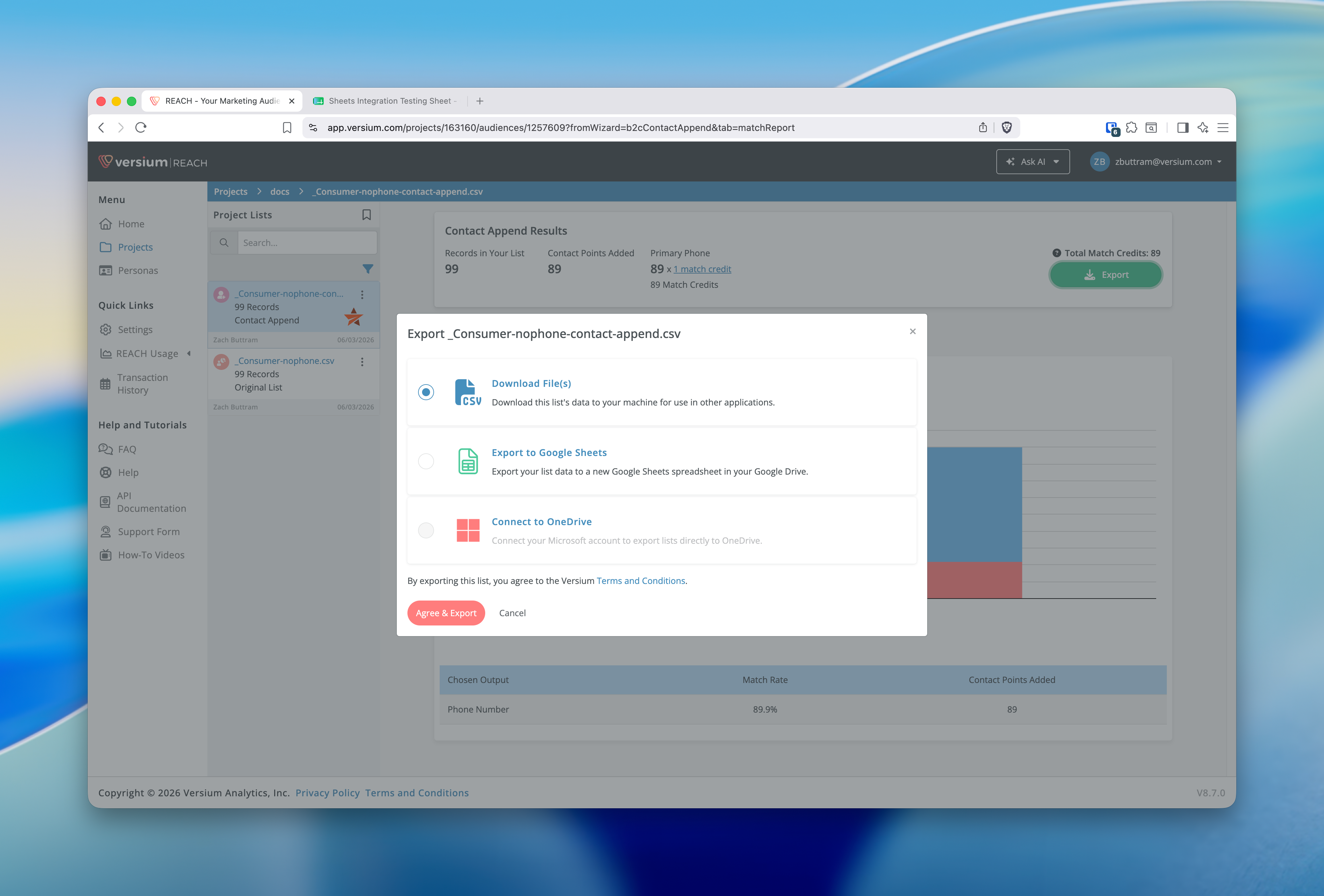
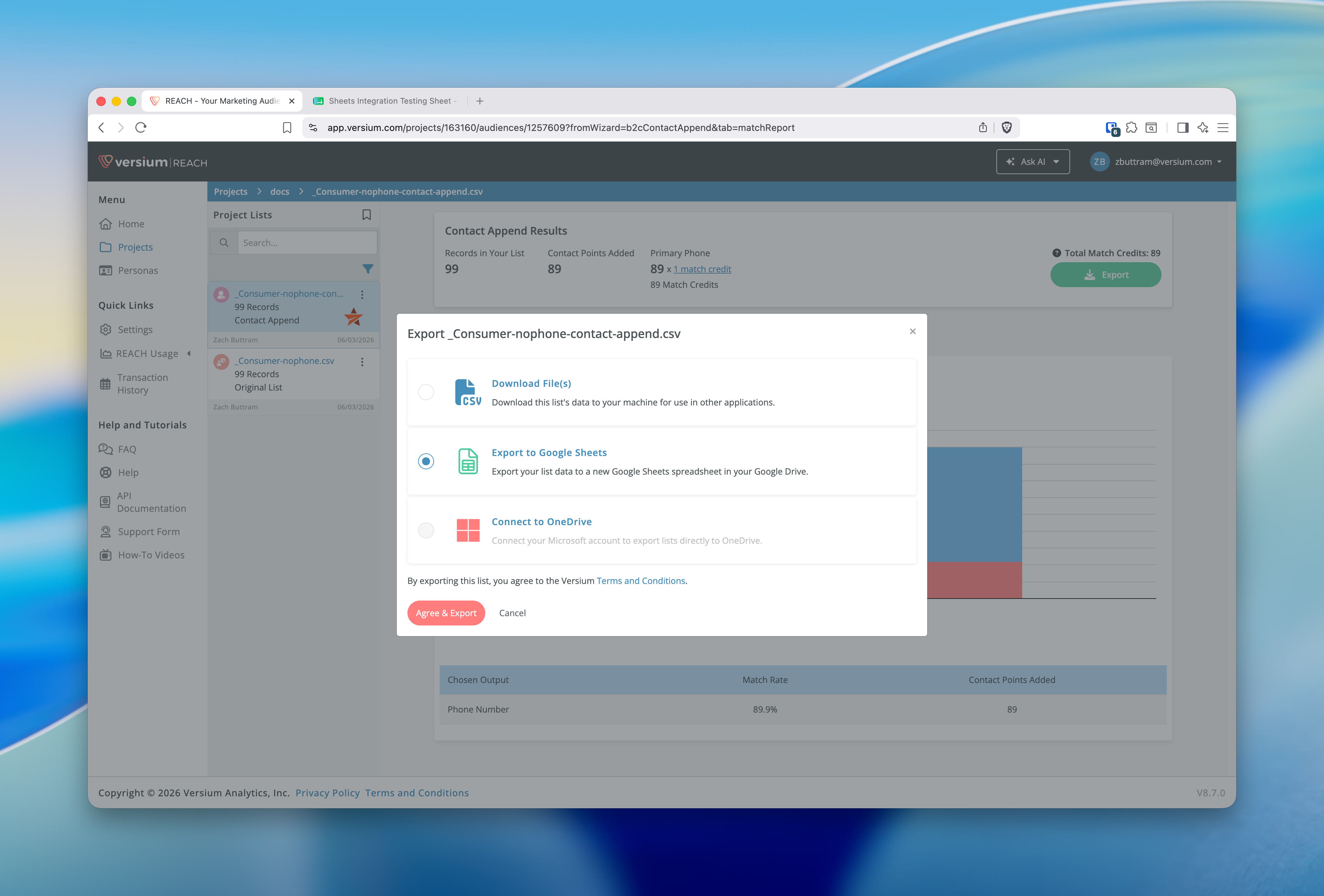
- In the Export modal, select Export to Google Sheets or Export to OneDrive.
- If the option shows a connect state instead of an active selection, connect the account from the modal, then select the export option again.
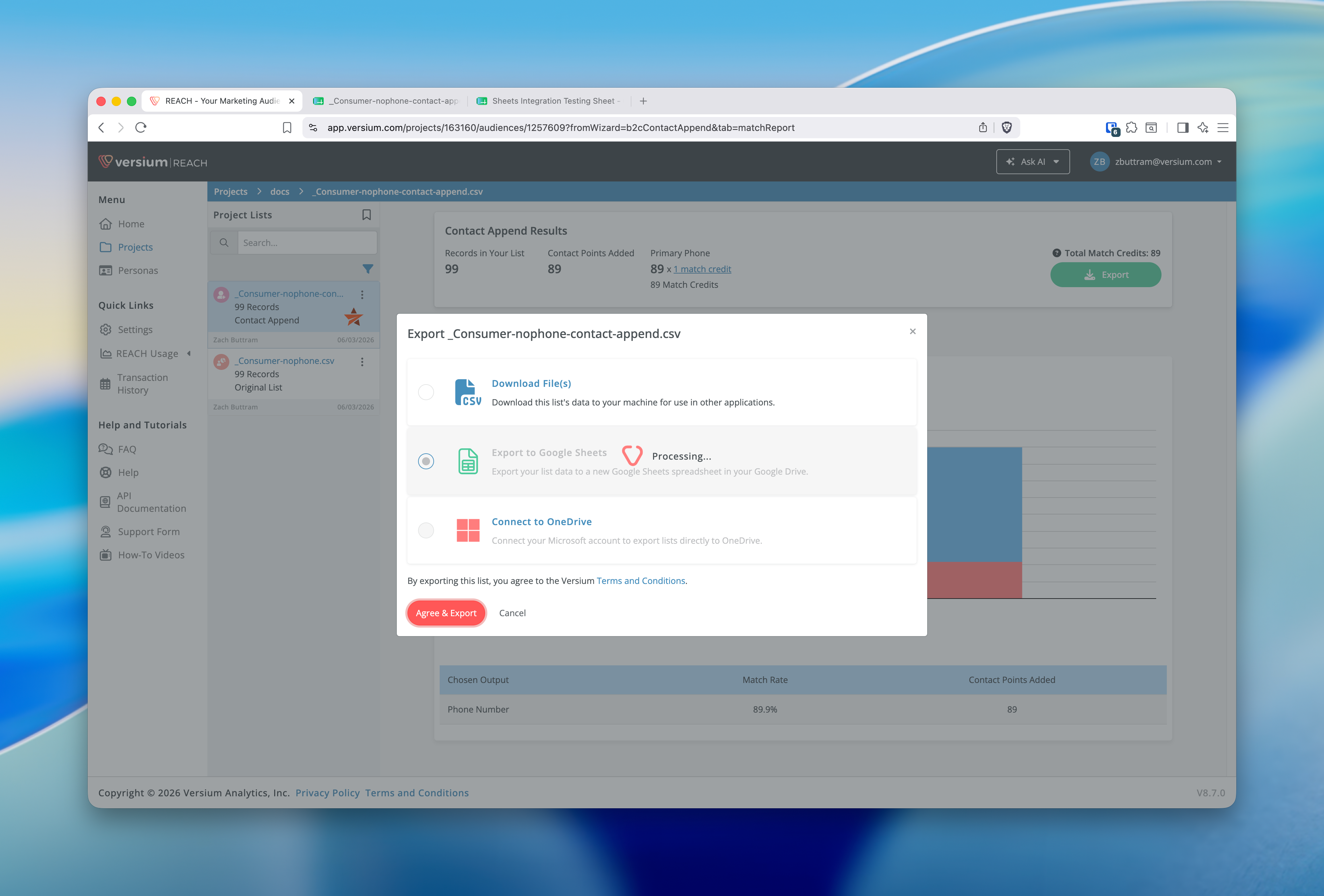
- Click Agree & Export to start the transfer.
- Wait for the success message and for Reach to open the returned file link in a new browser tab or window.
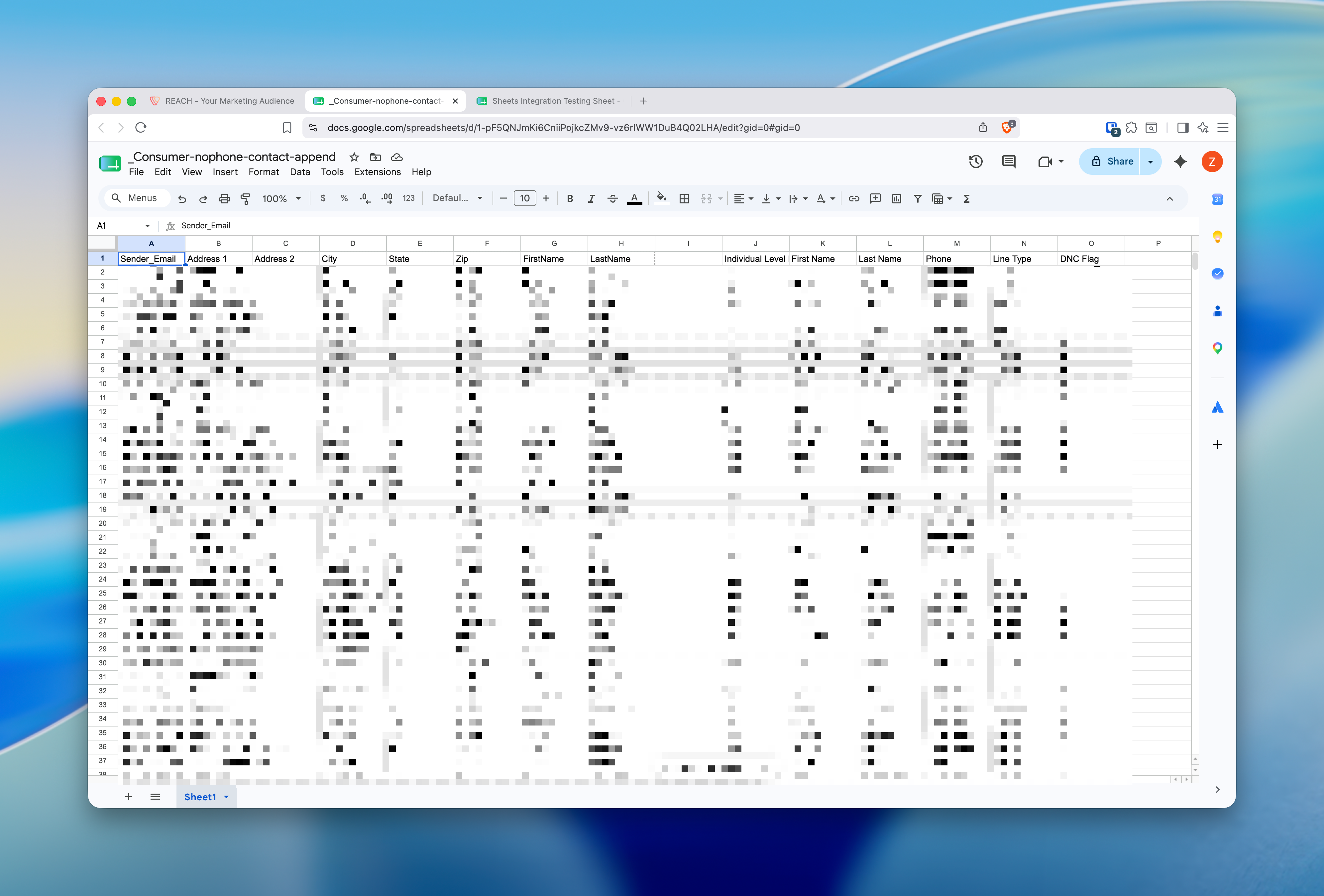
What you get
- Google Sheets: Reach creates a new spreadsheet in the connected Google account.
- OneDrive: Reach uploads a CSV file to the connected Microsoft account.
Troubleshooting
I cannot select Google Sheets or OneDrive
If the export option is disabled, connect the integration from the Export modal first. After the connection finishes, return to the modal and select the export option again.
The Agree & Export button stays disabled
The modal enforces a single destination selection. If the Agree & Export button stays disabled, ensure the destination is active in the modal and wait for any loading state to finish before trying again.
The file does not open after export
Check whether your browser blocked the new tab or window. If it did, allow popups for Reach and start the export again.
Updated 4 months ago