
Import from Google Sheets and OneDrive
Use this workflow when your source file already lives in Google Sheets or Microsoft OneDrive and you want to create a new list in Reach without downloading the file first.
Before you start
- Sign in to the Google or Microsoft account that owns the file you want to import.
- Start a Reach workflow that includes the Import List step.
- Keep the spreadsheet or CSV file ready so you can recognize it in the file picker.
Import a file from Google Sheets or OneDrive
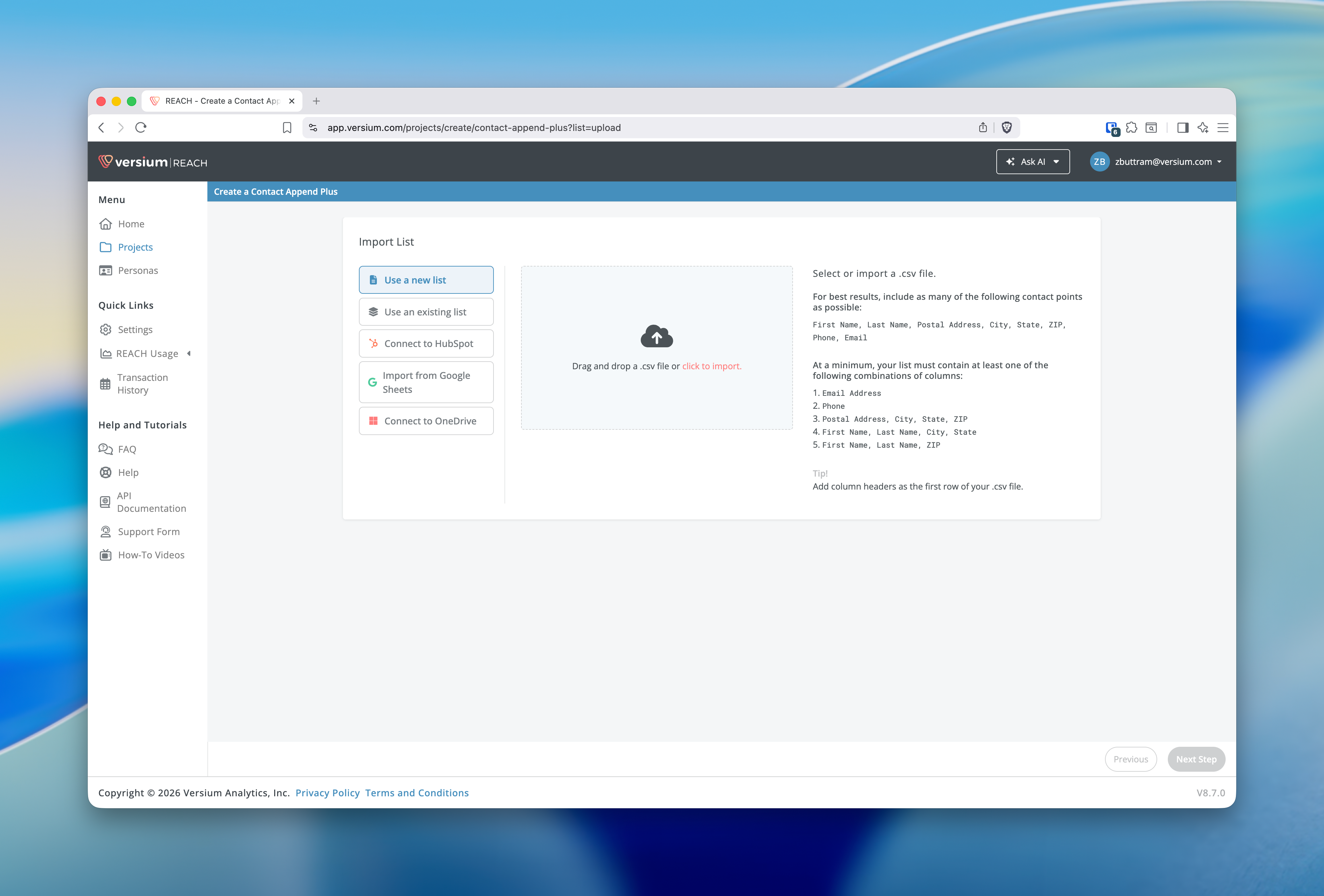
- Open your workflow until you reach Import List.
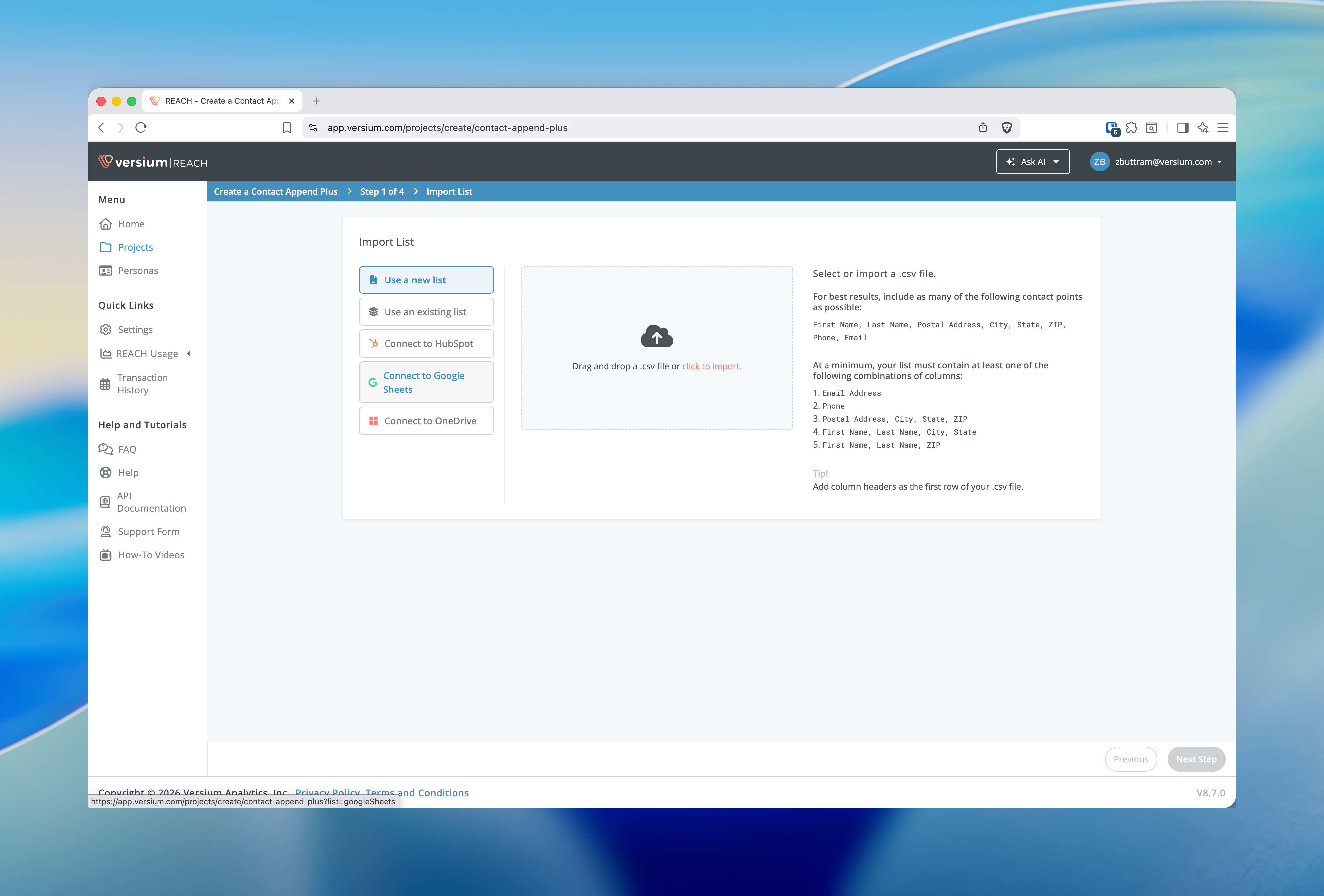
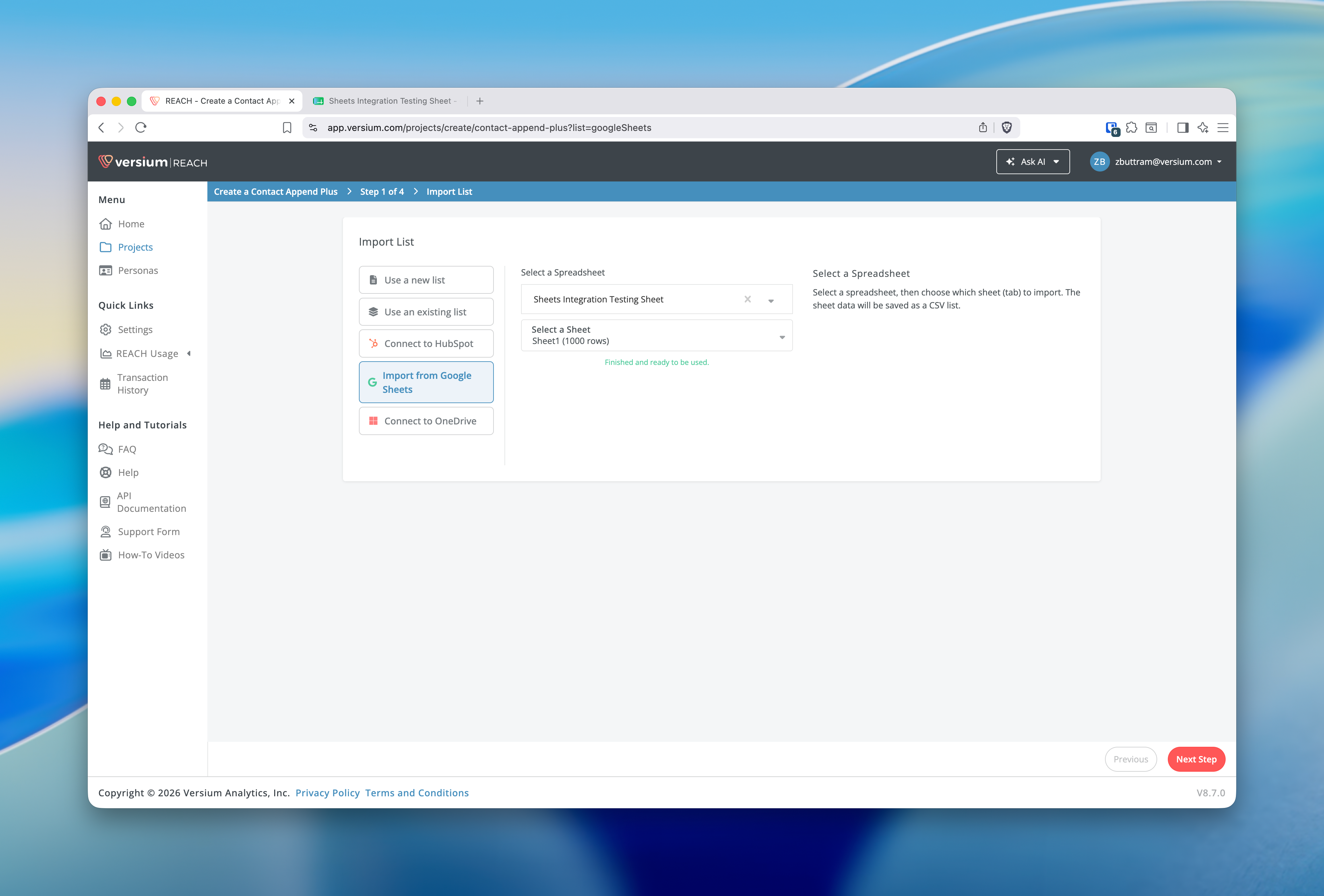
- In the left sidebar, click the Google or OneDrive option. If your account is connected the button will read Import from Google Sheets or Import from OneDrive; if not connected it may read Connect to Google Sheets or Connect to OneDrive — choose the option for the integration you want to use.
-
If Reach shows a connect prompt instead of a file picker, connect your account first. Complete the popup window, then return to Reach.
-
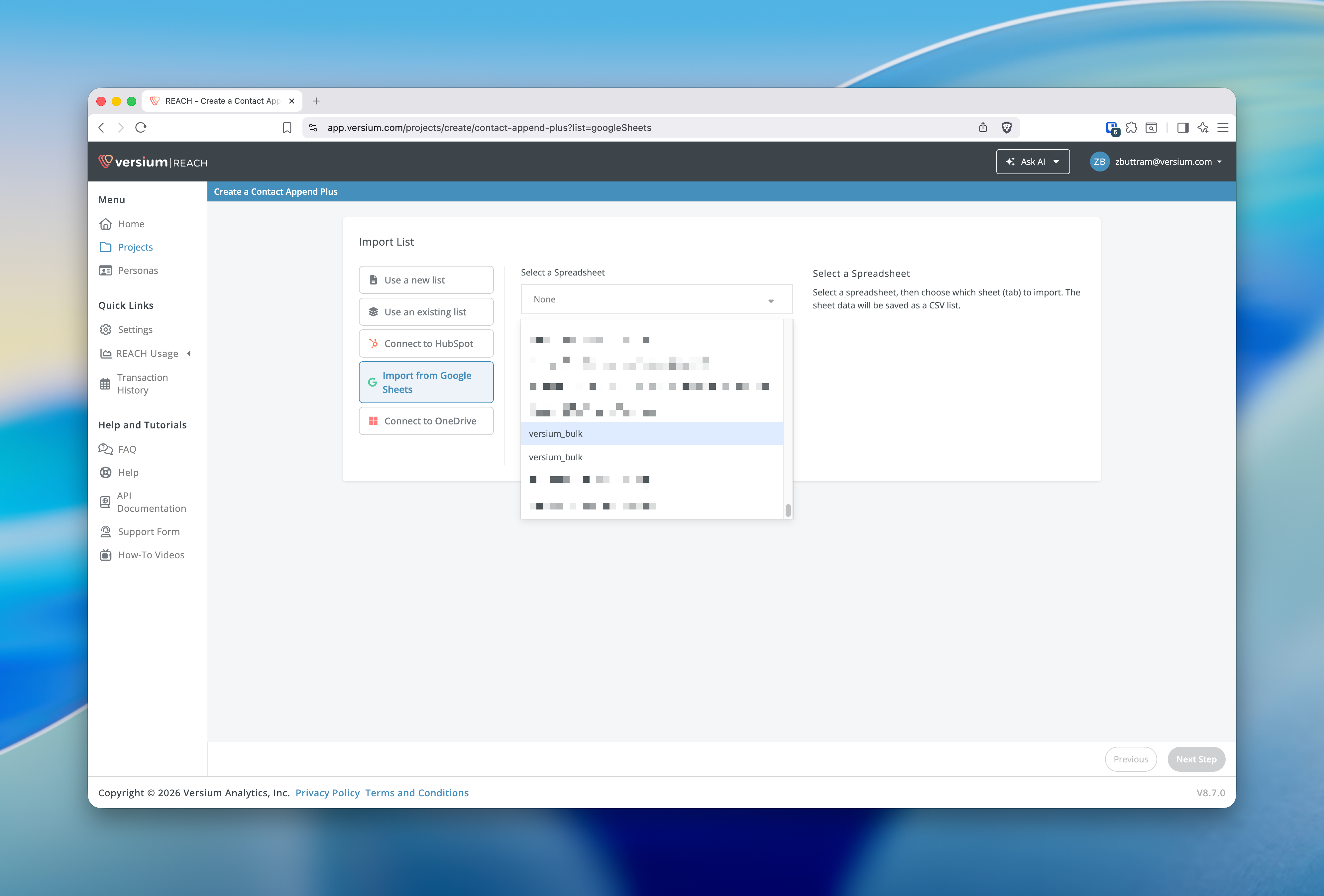
Open the picker and choose your source:
- Google Sheets: select the spreadsheet you want to import.
- OneDrive: select the file you want to import.
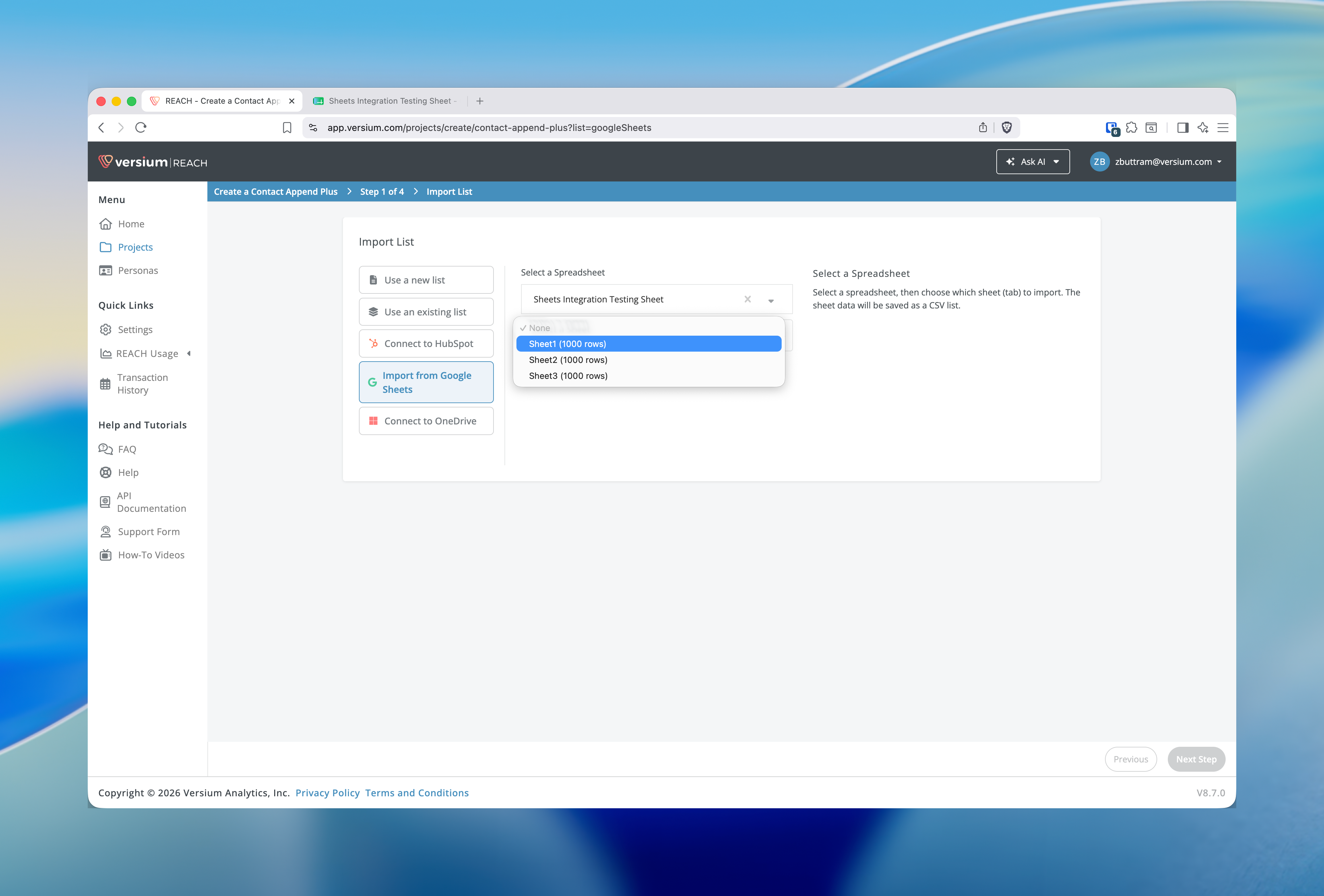
- If you selected a spreadsheet, choose the sheet you want to import. If you selected a CSV file, Reach starts the import as soon as you select the file.
- Wait for Reach to finish loading the imported file.
- Click Next Step to move to the next step and create the list.
What happens next
Reach uses the imported file as the source for the list you are creating. After you click Next Step, you can finish the rest of the workflow with the imported data.
Troubleshooting
I still see a connect prompt
Close the popup, return to Reach, and try the connection again. If the connection succeeds, the import panel should refresh and show your available files instead of the connect prompt.
I do not see my file
Confirm that you are signed in to the correct Google or Microsoft account and that the file is stored in that account. Then reopen the import option and check the file picker again.
The import fails after I choose a file
Choose the file again and make sure you selected the correct sheet when the file contains multiple tabs. If the problem continues, try a different file from the same account to confirm whether the issue is specific to that document.
Updated 4 months ago