
Setup with Claude
This doc will cover setting up the Versium REACH MCP server for use with Anthropic’s Claude.
1. Log in to Claude
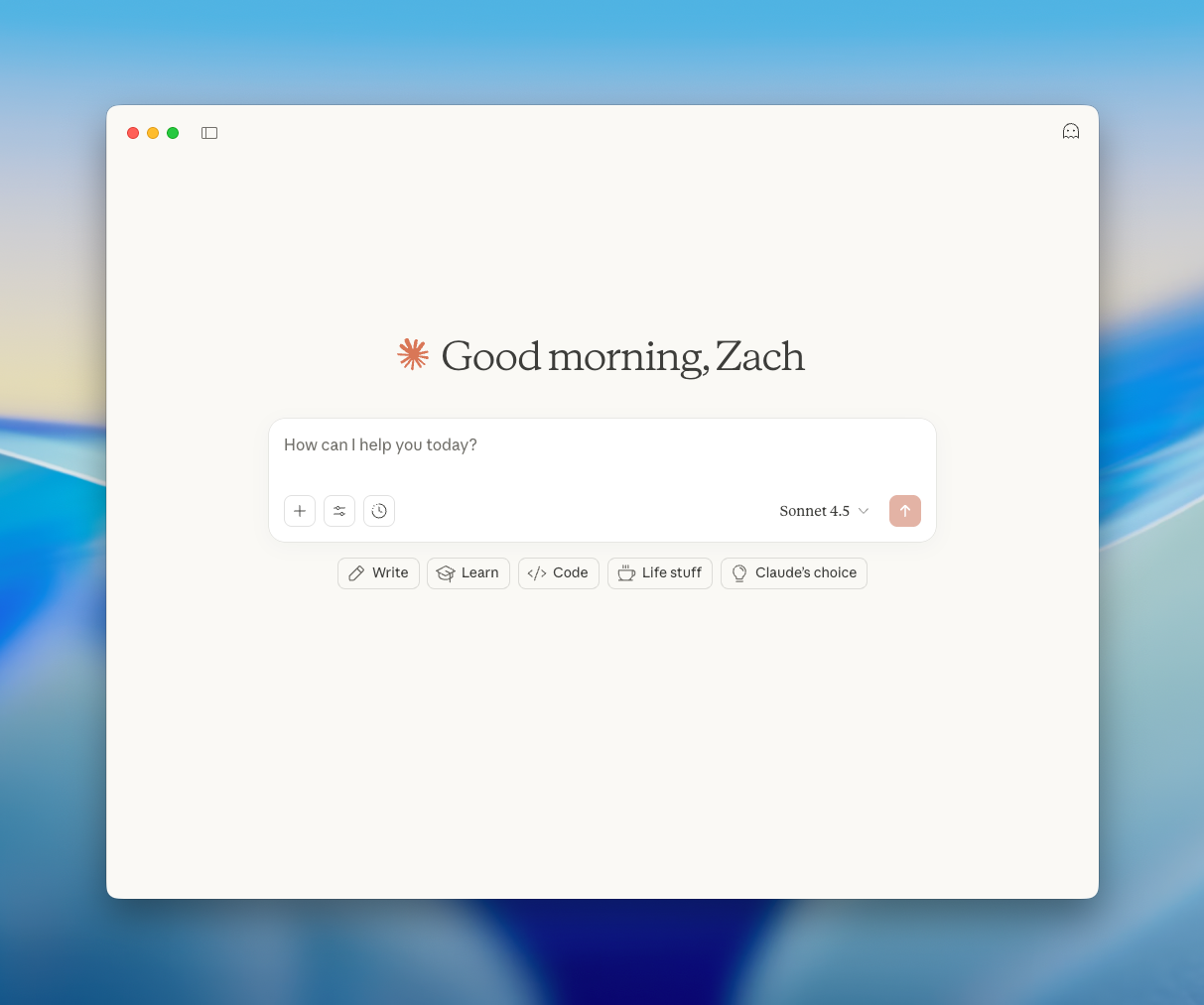
Start by logging into your Claude account on Web or Desktop.
2. Open the Settings Panel
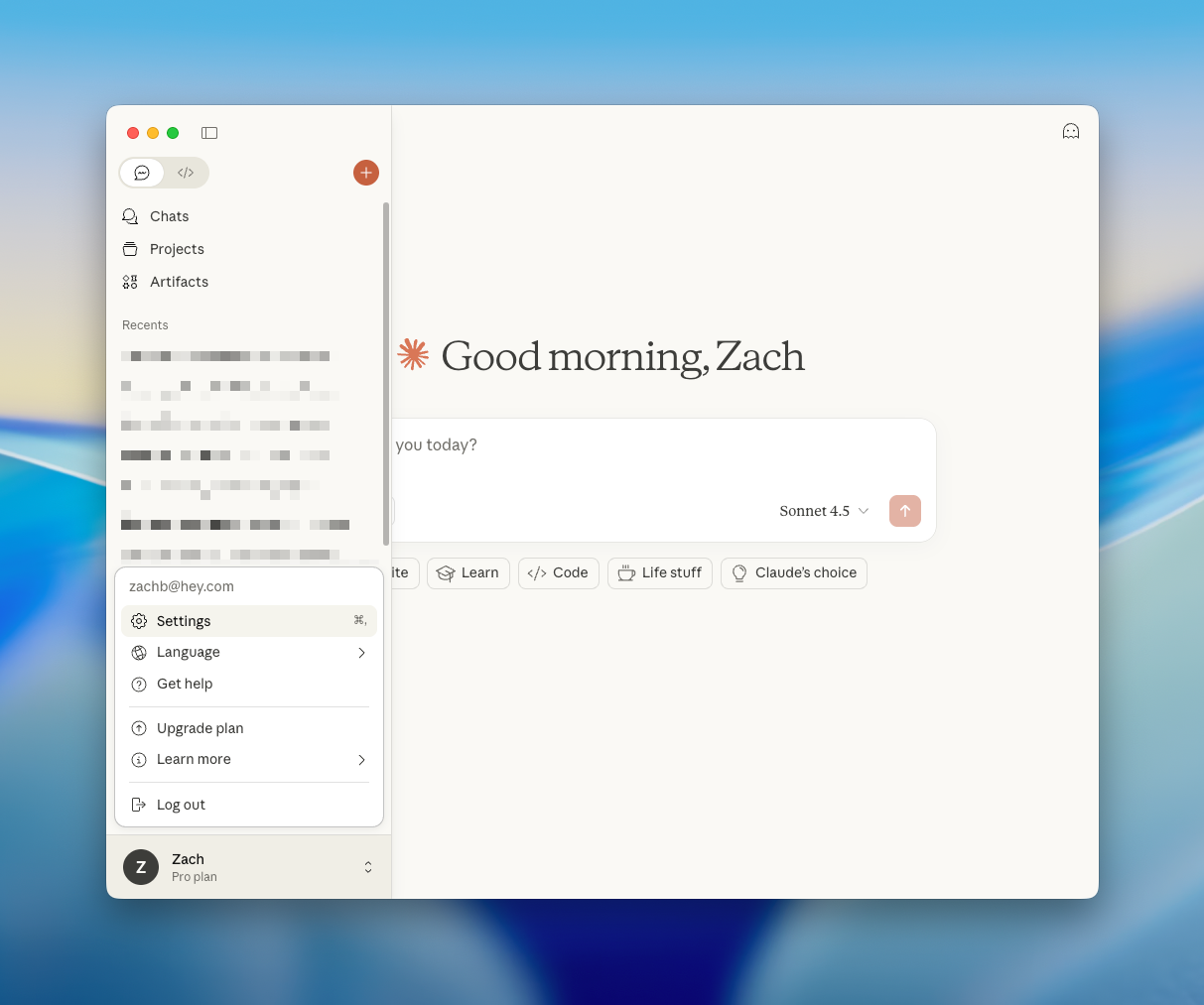
To open the Settings panel, click on your profile badge at the bottom of the sidebar and choose “Settings”.
3. Go to the Connectors Tab in Settings
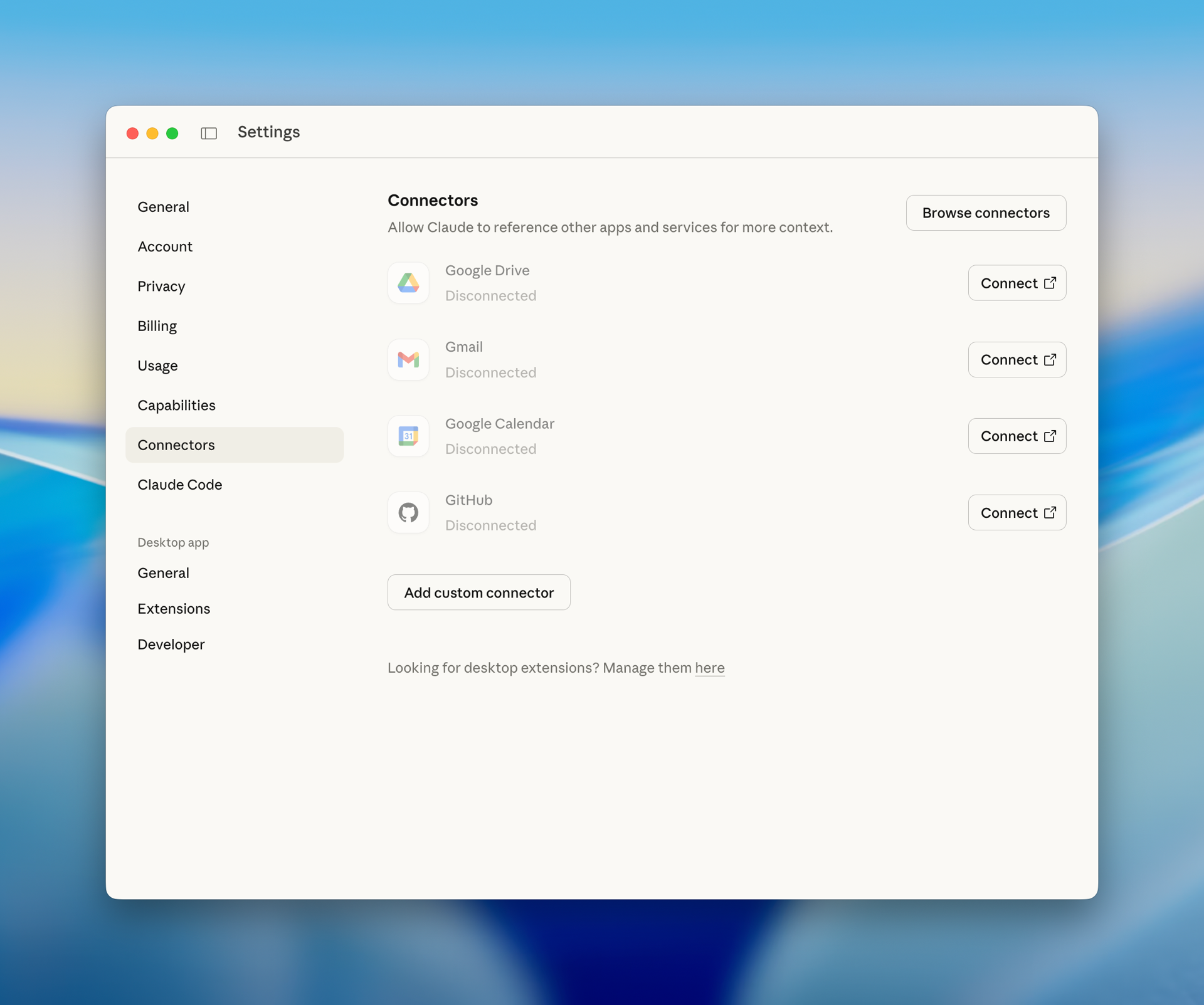
Click “Connectors” in the sidebar of the Settings panel.
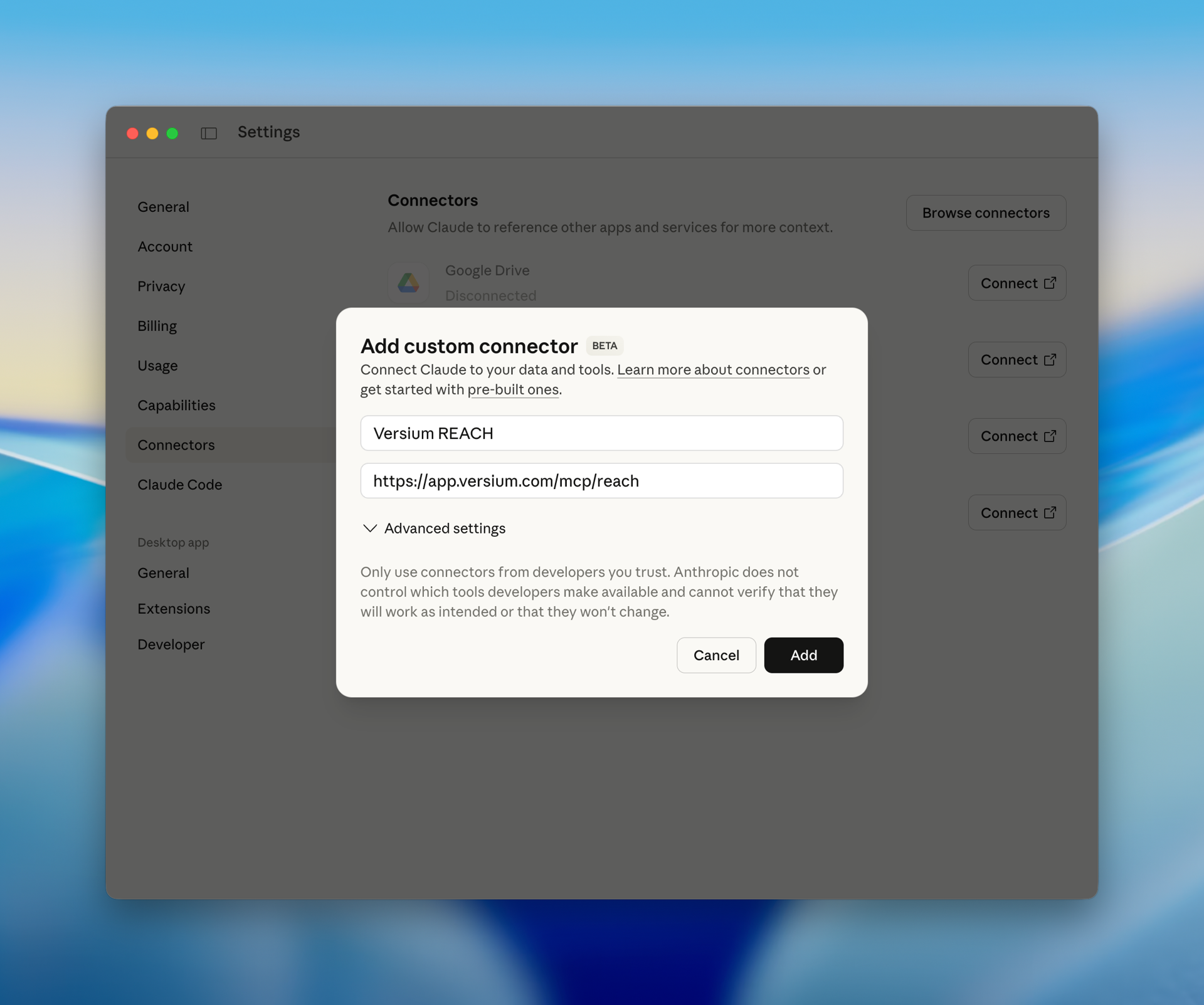
4. Choose “Add custom connector” and input the MCP details
You can input any name you like for the connector, though we suggest “Versium REACH”.
The URL for the MCP server is https://app.versium.com/mcp/reach
You do not need to add anything in Advanced Settings.
5. Click "Add"
This should automatically redirect you to REACH to authenticate your new connector. If you are not automatically redirected, click the “Connect” button on the newly added connector.
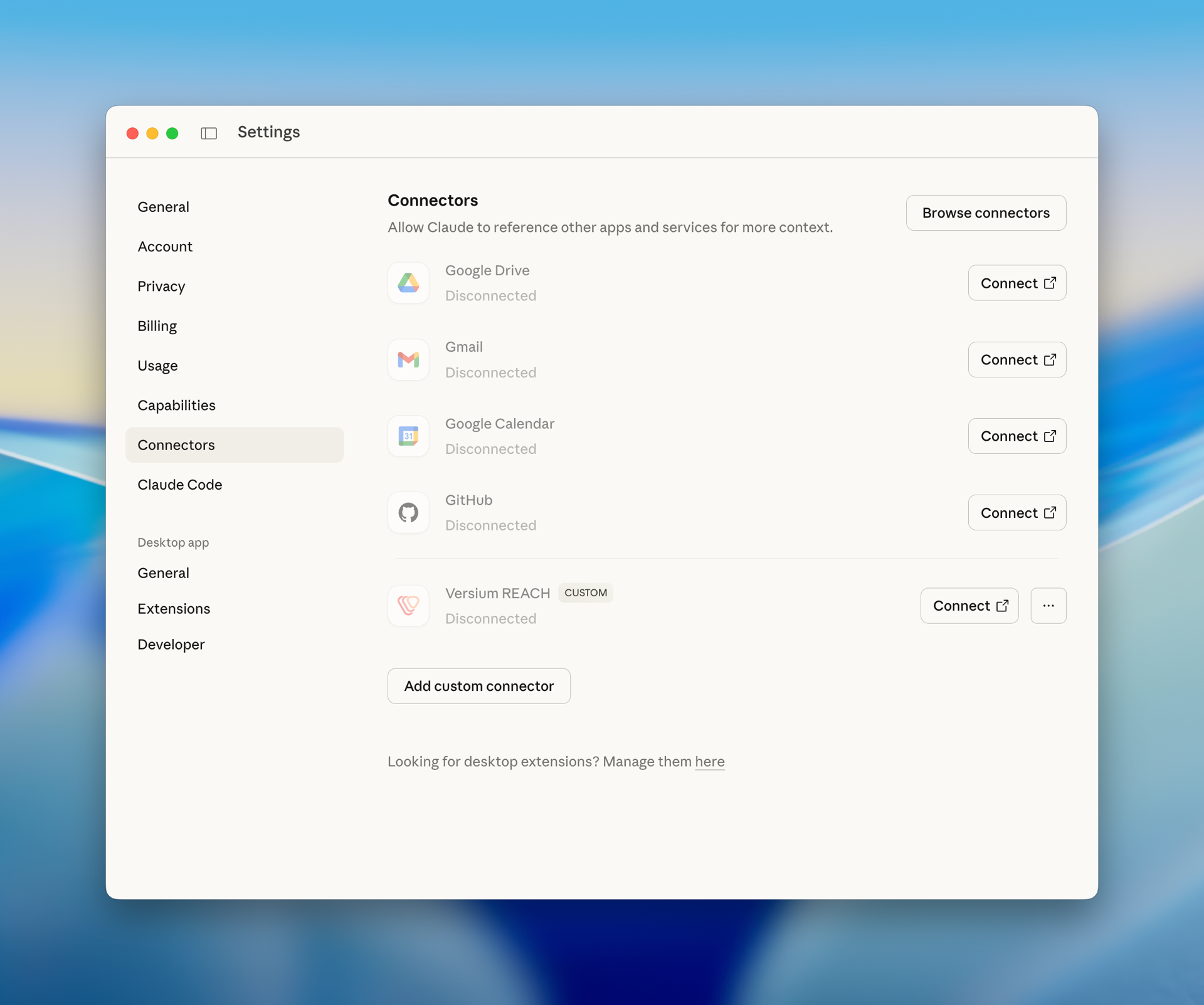
6. Authorize Claude to Access your REACH Account
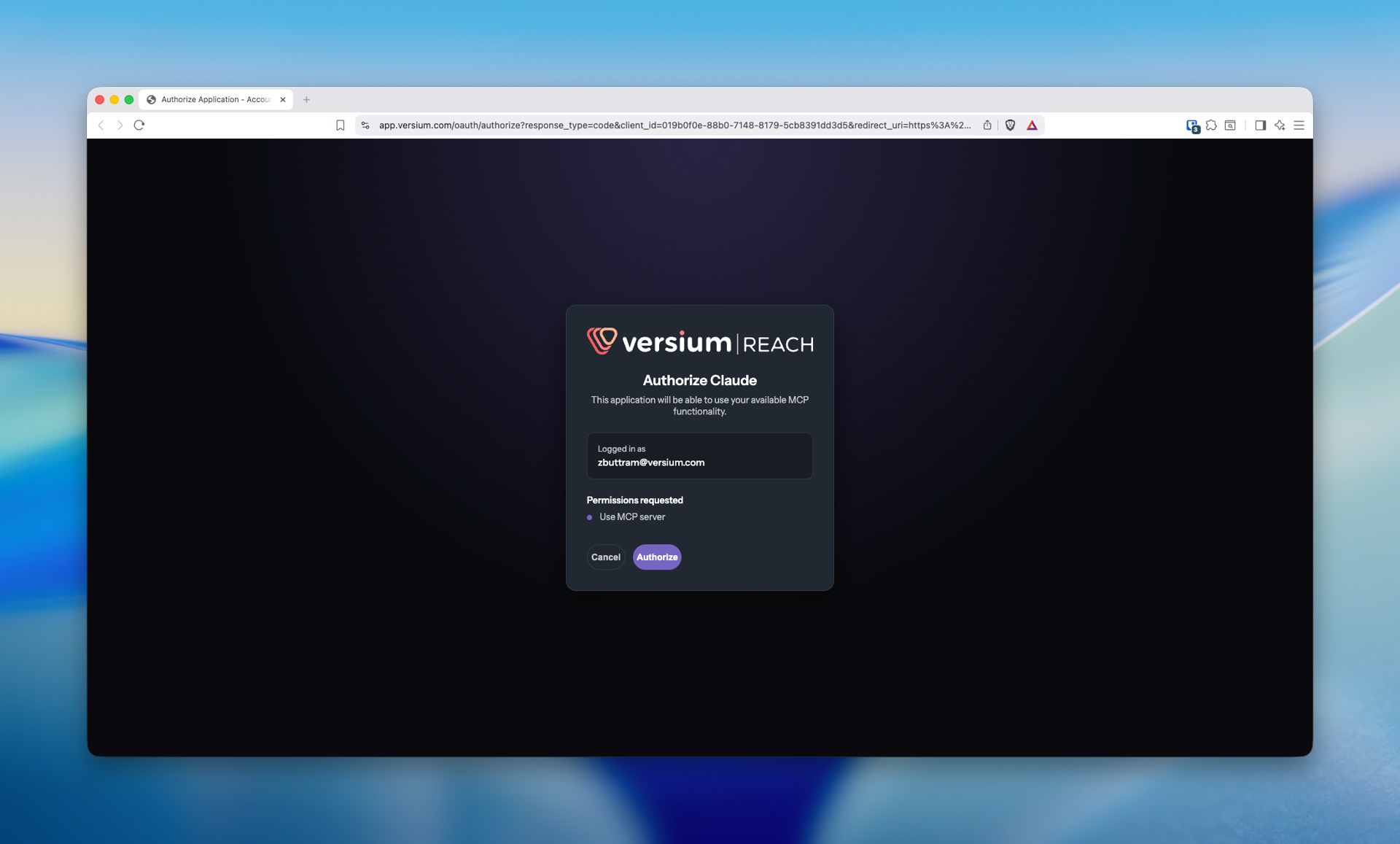
You may first be prompted to log into your account. You will then see the following screen. Click “Authorize” to continue.
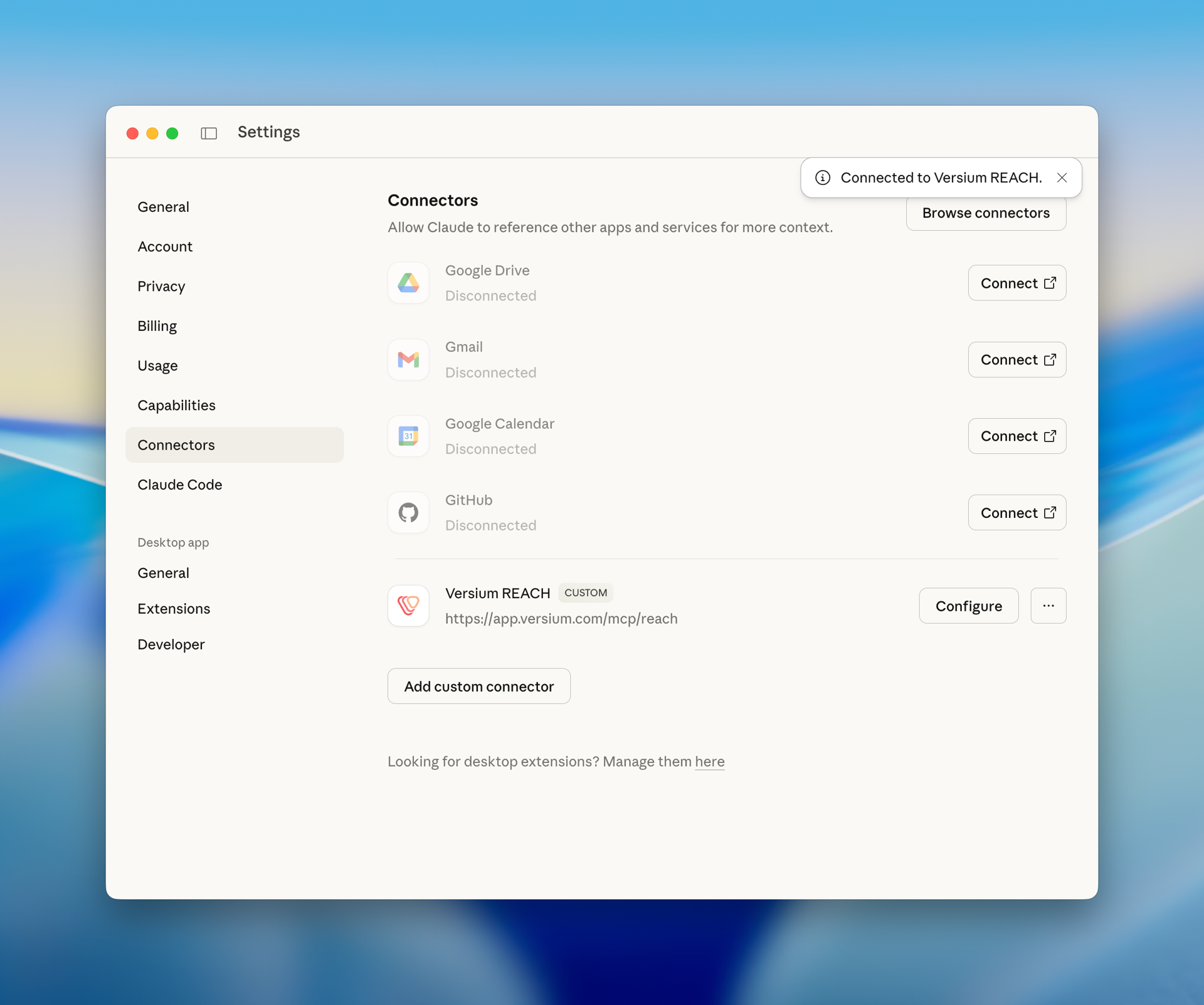
Your connector should now be successfully connected!
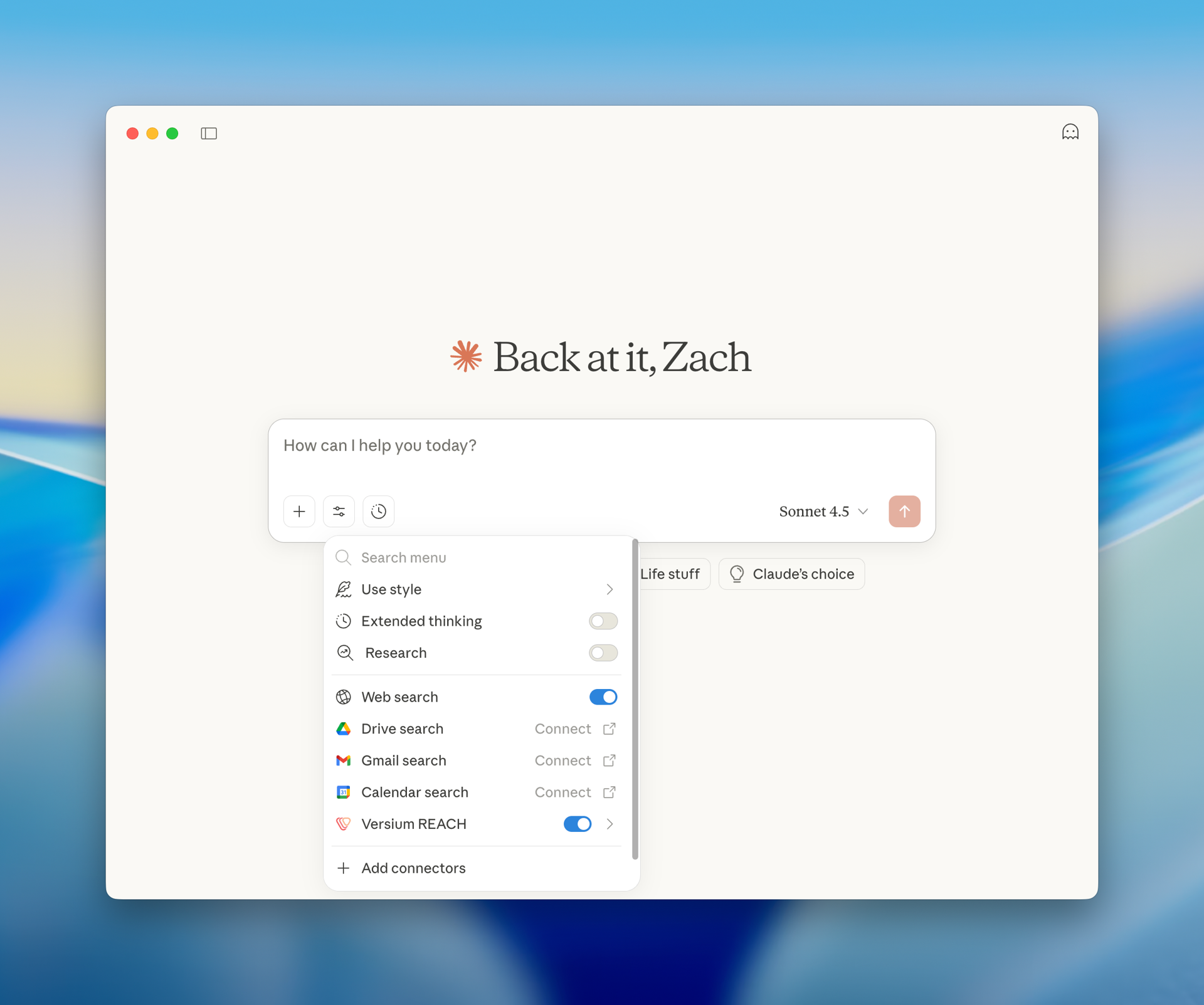
Back in the main chat view, you will see the new connector available inside the “Search and tools” menu. To allow Claude to use the available MCP tools, ensure the connector is enabled for your chat. Claude will then have access to the tools until you disable them.
Claude should be able to infer when to use the tools based on your prompts, you do not necessarily need to prompt it specifically to use the tools although that can produce better results in some cases. You can view some of our example prompts in another document.
Updated 9 months ago